

How to Configure Static IP / Proxy in Myalgomate Software
Follow the steps below to configure a Static IP or Proxy in the Myalgomate software.
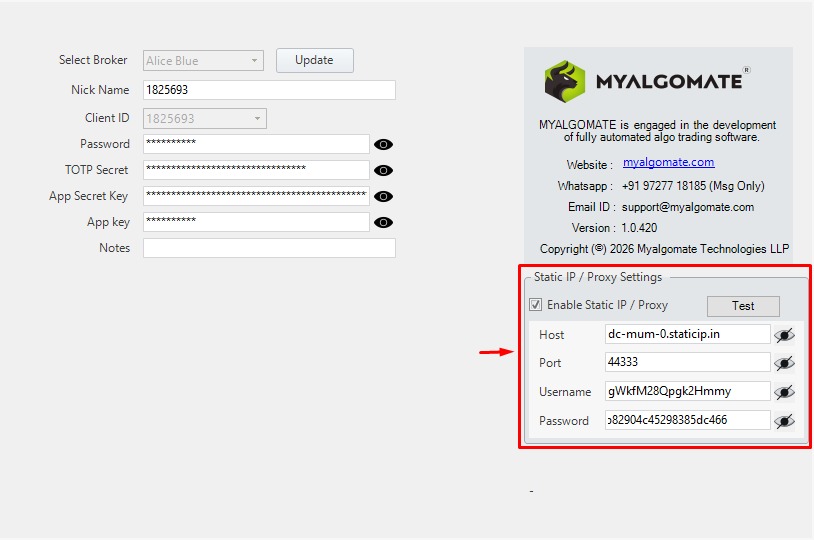
Step 1: Open Account Details in Myalgomate
- Open the Myalgomate Software.
- Navigate to the Account Details page.
- Choose one of the following options:
- Click Update if your account is already added in the software.
- Click Add New Account if you are adding a fresh account.
- Enable the option “Enable Static IP / Proxy.”
- Enter the proxy details provided by your Proxy Provider.
Step 2: Enter Proxy Details
You need to enter the following information provided by your IP/Proxy provider:
- Host Name
- Port Number
- Username
- Password
Make sure all details are entered exactly as provided by the proxy service provider.
Step 3: Test Static IP / Proxy
After entering the proxy details:
- Click the Test button under the Static IP / Proxy section.
- If all the details are correct, you will receive a successful response message similar to the image below.
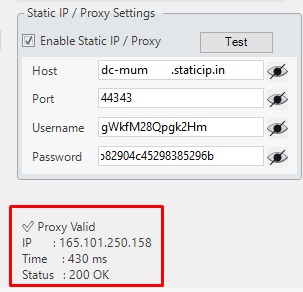
- If your provider has given you a specific IP address, verify that the same IP is displayed in the response.
- Use this IP while creating the API in your broker platform.
- If the proxy provider does not provide the IP, you can copy the IP displayed in the response and enter it in the broker terminal.
Step 4: Save the Details
Once you have entered all the Broker and Proxy details:
- Click Update if you are modifying an existing account.
- Click Add if you are adding a new account.
Step 5: Start Using the Software
After saving the details, the setup is complete.
You can now run the Myalgomate software normally, and it will operate using the configured Static IP / Proxy connection.
List of Proxy Providers:
- https://proxy-seller.com/indian-proxy/
- https://staticip.in/